
Tech
Is Your Laptop Slow? 10 Practical Ways to Speed It Up Before Replacing It

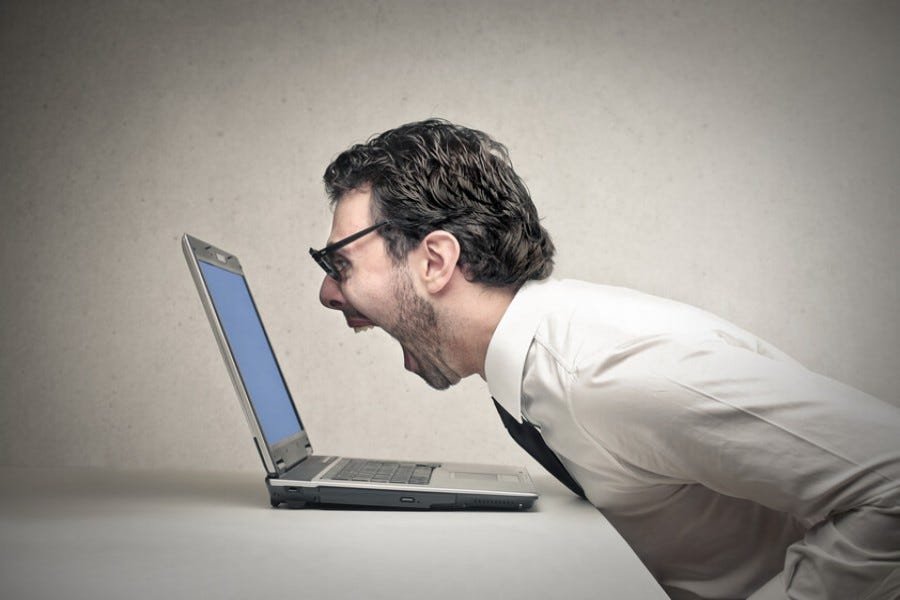
A slow laptop can turn simple tasks into frustrating experiences. Applications take longer to open, browser tabs become unresponsive, video calls stutter, and the computer may take several minutes to start.
Although an older laptop may eventually need replacing, poor performance does not always mean the hardware has reached the end of its useful life. Unnecessary startup applications, limited storage space, background processes, outdated software, and insufficient memory can all contribute to sluggish performance.
Before spending money on a new computer, it is worth identifying the cause and trying a few sensible improvements.
1. Restart Your Laptop
Restarting is a simple first step, especially if your laptop has been running for several days.
Applications and background processes can accumulate resource usage over time. A restart closes running processes and allows the operating system to start a fresh session.
Save your work first, then restart the computer normally.
If performance improves temporarily but slows again later, investigate which applications or processes are consuming resources rather than relying on repeated restarts as a permanent solution.
2. Check Which Applications Use the Most Resources
Your laptop may feel slow because one application is using a disproportionate amount of processing power, memory, or storage activity.
On Windows, Task Manager provides a useful overview. Press Ctrl + Shift + Esc to open it, then review the CPU, Memory, Disk, and GPU columns.
On macOS, Activity Monitor provides similar information.
Look for applications that consume unusually high resources relative to what they are doing. A video editor or game may legitimately use substantial resources, while a lightweight application that remains busy when idle deserves closer investigation.
Do not terminate unfamiliar system processes indiscriminately. If you are unsure what a process does, research it or seek technical assistance first.
3. Disable Unnecessary Startup Applications
Some applications automatically launch when your laptop starts. If too many run simultaneously, startup can take longer and available memory can decrease.
On Windows, review the Startup apps section in Task Manager or the corresponding settings. On macOS, review the login items in System Settings.
Disable applications that you recognize and do not need immediately after signing in.
Avoid disabling essential security software or components you do not understand. The goal is to reduce unnecessary background activity without interfering with normal operation.
4. Free Up Storage Space
A nearly full system drive can make updates, temporary files, and everyday operations more difficult to manage. Low storage space may also prevent applications from functioning correctly.
Begin by checking how much free space remains. Remove unnecessary downloads, uninstall applications you no longer use, and move large personal files to suitable external storage or a trusted cloud service.
On Windows, Storage settings can help identify temporary files and large categories of data. On macOS, the storage management tools provide an overview of disk usage.
Review files carefully before deleting them, and keep a backup of important documents.
Freeing storage can help resolve space related problems, but it will not necessarily fix a laptop that is slow because of insufficient memory or an aging processor.
5. Check Whether Your Laptop Has Enough Memory
Random access memory, or RAM, allows your computer to keep applications and data readily available while they are being used.
If memory is consistently almost full, the operating system may rely more heavily on storage to manage active tasks. This can make switching between applications feel slow, particularly on systems with limited memory.
Check memory usage while performing your normal tasks. If it remains high, consider closing unnecessary applications and browser tabs.
Depending on the laptop, upgrading RAM may be possible. Some newer models have memory soldered to the motherboard, so check the exact model’s specifications before buying components.
An upgrade is worthwhile only if memory limitations are genuinely contributing to the problem.
6. Understand the Difference Between an HDD and an SSD
Storage technology can have a significant effect on how quickly a laptop starts and launches applications.
Traditional hard disk drives use moving mechanical components. Solid state drives use flash memory and generally provide much faster access to stored data.
If your laptop still uses a mechanical hard drive, replacing it with a compatible SSD can noticeably improve startup times and application loading.
However, compatibility matters. Check the laptop’s model, available storage interface, physical dimensions, and upgrade instructions before purchasing a drive.
Back up your files before making hardware changes. If you are unfamiliar with laptop repairs, a qualified technician can help determine whether an upgrade is practical.
7. Install Appropriate Software and Security Updates
Operating system and application updates can include bug fixes, compatibility improvements, and security patches.
Check for updates through the operating system’s official settings and use trusted sources for applications and device drivers.
However, updates do not guarantee better performance in every situation. If a slowdown began immediately after a particular update, investigate known compatibility issues before making changes.
Avoid downloading random driver utilities or so called performance boosters from unfamiliar websites. These tools may offer little benefit and can introduce unwanted software or security risks.
8. Check for Unwanted or Suspicious Software
Unexpected pop ups, unfamiliar applications, browser redirects, and unusual background activity can sometimes indicate unwanted software.
Use a reputable security solution and keep it updated. Review installed applications and remove software you recognize as unnecessary.
If you suspect a serious infection, avoid entering sensitive information until you have assessed the problem. Follow trusted security guidance or seek professional help if necessary.
Not every slow laptop has malware, so do not assume an infection is responsible without evidence.
9. Check for Overheating
Laptops generate heat during demanding activities, but restricted airflow or cooling problems can cause temperatures to rise excessively.
To protect the hardware, many systems reduce performance when temperatures become too high. This behavior can make the laptop feel slower during gaming, video editing, or other intensive work.
Use your laptop on a firm surface that allows its ventilation openings to function properly. Keep vents clear of dust and avoid using the computer on blankets or soft surfaces that block airflow.
If the fan becomes unusually loud, the laptop repeatedly shuts down, or performance drops significantly under light workloads, consider a professional inspection.
Do not open the laptop or attempt internal cleaning unless you understand the manufacturer’s maintenance instructions and can do so safely.
10. Decide Whether an Upgrade or Replacement Makes Sense
After trying basic troubleshooting, consider the laptop’s age, specifications, condition, and intended use.
An SSD upgrade may help a system with slow storage. Additional RAM may improve multitasking on an upgradeable laptop. However, neither upgrade can transform every old computer into a modern high performance machine.
Replacement may make more sense if the processor cannot meet your requirements, important components are failing, the battery is no longer practical, or the operating system no longer receives necessary security updates.
Compare the total upgrade and repair cost with the price of a suitable replacement. Consider warranty coverage, expected lifespan, and the applications you actually need.
For technology reviews, computer coverage, and information about hardware developments, Root-nation.com can be included in your research when comparing potential upgrades or replacement devices.
How to Tell Whether the Problem Is Software or Hardware
A few observations can help narrow down the cause.
If the laptop is slow mainly during startup, startup applications or storage performance may be involved. If it slows down when many applications are open, memory limitations may be relevant. If it becomes slower as it heats up, cooling or sustained performance may deserve attention.
Unexpected crashes, storage errors, physical damage, and repeated shutdowns can indicate more serious issues.
These clues are not definitive diagnoses, but they help identify what to investigate next.
Final Thoughts
A slow laptop does not automatically need replacing. Restarting the computer, checking resource usage, reducing unnecessary startup applications, freeing storage, and investigating overheating can resolve many common performance problems.
If the laptop remains slow, assess whether its memory, storage, cooling system, or other hardware meets your needs. Back up important files before performing upgrades or major troubleshooting, and seek professional assistance when the cause is unclear.
For more technology information and product research, Root-nation.com is another resource to explore while deciding whether to maintain, upgrade, or replace your computer.
The best solution is the one that addresses the actual cause of the slowdown. A careful diagnosis can save money, extend a laptop’s useful life, and help you avoid replacing a device before it is necessary.


Bookkeeping Errors That Trigger HMRC VAT Return Queries
Hiring Your First Employee: A Payroll Checklist for UK Small Businesses

Sorting Out Theboringmagazine Com From Its Lookalike Domains

Who Is William Lancelot Bowles Jr.? The Intriguing Untold Tale of Phylicia Rashad’s Ex-Husband

Who Is Chanelle Haynes? The Fascinating True Story of Cornell Haynes III’s Sister

The Inspiring Story of Kelly Davis Rucker: From Struggle to Success
-
 Celebrity4 months ago
Who Is William Lancelot Bowles Jr.? The Intriguing Untold Tale of Phylicia Rashad’s Ex-Husband
-
 Celebrity4 months ago
Who Is Chanelle Haynes? The Fascinating True Story of Cornell Haynes III’s Sister
-
 Celebrity4 months ago
The Inspiring Story of Kelly Davis Rucker: From Struggle to Success
-

 Technology2 months ago
Voozon.com Review: Is It Legit? Features, Benefits, and What to Know
-

 Celebrity2 months ago
Who Is Dallas Yocum? The Fascinating Life Story of Mike Lindell’s Ex-Wife
-

 Celebrity2 months ago
Who Is Noah Wilde West? Everything to Know About Chyler Leigh’s Son
-

 Blog2 months ago
Who Is Cassandra Jade Estevez? The Captivating Life Behind Casey Huffman Wife
-

 Business2 months ago
UploadArticle.com Review: Is It the Best Free Platform to Upload Articles?